Python Programming
Getting started Programming with Python
Posted by
Posted on 9/23/2025
Programming with Python
This guide will show you how to begin programming your Ro/Box with Python instead of the block-code editor. Python is a text-based coding language that’s more complex than block coding, but it gives you far greater control and flexibility in how you want to program your robot to behave.
Since nearly all real-world programming uses text-based languages, learning Python is a fantastic next step if you want to deepen your understanding of code and coding skills.
This isn’t a full Python course, but a practical walkthrough to help you set up the tools you need and start writing Python code for your Ro/Box. We’ve designed our kit with this transition in mind, so moving from blocks to Python should be as smooth and approachable as possible. By the end of this guide, you’ll have your environment ready to begin programming in Python.
Steps:
Before diving into Python, make sure your Ro/Box kit has been fully built and is working correctly. We'd recommend checking your Ro/Box against this guide before beginning. If everything’s running smoothly, great! We can now move on to setting up your programming environment.
1. Install an IDE
To write Python code for your Ro/Box, you'll need an IDE (Integrated Development Environment). We recommend you use Thonny , since it is what we will be using for this guide. (Other editors like VS Code can also be used with the right extensions).
Download and install Thonny, then you’re ready for the next step.
2. Connect to the Ro/Box
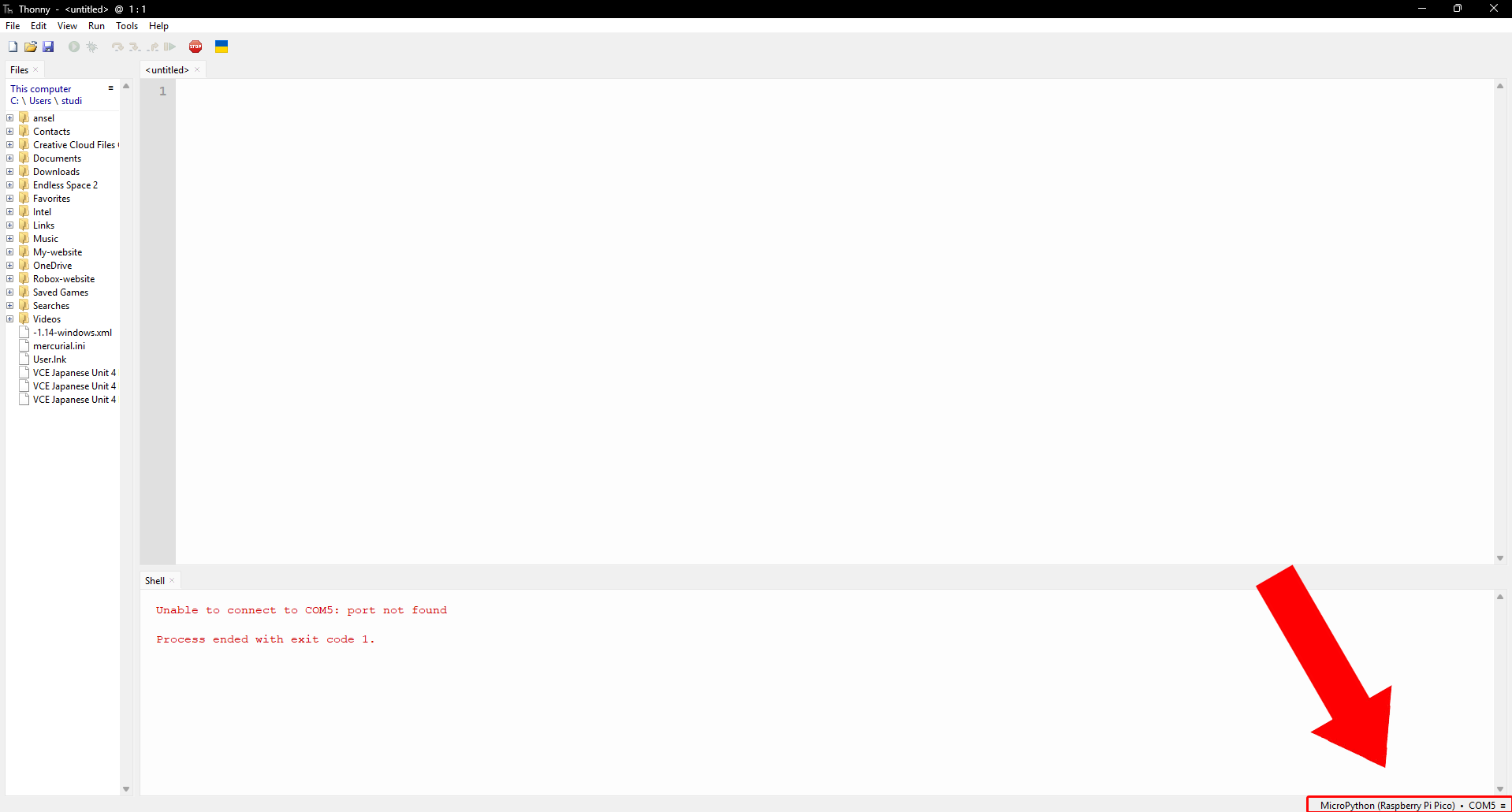
Open Thonny and look for the text in the bottom-right corner of the screen that says “MicroPython (Raspberry Pi Pico)”. Click it, and a dropdown will appear.
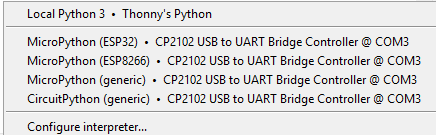
Select either Option 2 or Option 3 (these will depend on your system). Once selected, you’ll notice the file explorer on the right switch from your computer’s directories to the Ro/Box’s onboard files.
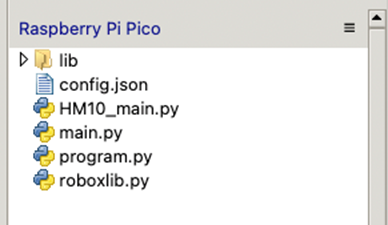
That’s how you know you’re connected!
3. Understanding the Pico’s library
When connected, you’ll see a few files stored on your Ro/Box. Here’s what they do:
· config.json : Stores important data for your Ro/Box, such as colour calibration values. You can also add your own settings here if you’d like.

· HM10_main.py : An experimental Bluetooth feature we’re testing. It doesn’t serve a purpose yet, but you’re welcome to explore it.
· main.py : This is the core communication protocol for the Ro/Box.
↳ WARNING: changing this file can break the connection between your robot and the website. If that happens, you’ll need to undo your edits or reflash the Ro/Box.
· roboxlib.py : A library of helper functions that make it easier to control your Ro/Box’s electronics. Exploring this file is a great way to learn how the system works under the hood. (Full documentation is coming soon, but if you have technical questions in the meantime, feel free to email us.)
· program.py : Where to begin writing your own code.
4. Programming the Pico
Now comes the exciting part: writing your first Python program for Ro/Box.
The file you’ll be working in the program.py file. This is where you can write your own code to run your Ro/Box with.
Here’s an example program you can try, which will let your robot do basic line following:
from roboxlib import Motors, LineSensors, UltrasonicSensor, ColorSensor
from machine import Pin, Timer
import time
import json
import sys
ENV_LED = Pin(25, Pin.OUT)
line = LineSensors()
left_motor_polarity = right_motor_polarity = -1
ultrasonic = UltrasonicSensor()
def generatePrint(typ, message):
jsmessage = {"type": typ, "message": message}
return json.dumps(jsmessage)
try:
color_sensor = ColorSensor()
except Exception:
generatePrint("error", "Cannot connect to colour sensor, is it on?")
motors = Motors()
motor_speed = 60
def event_begin():
global left_motor_polarity, right_motor_polarity
while(True):
if (ultrasonic.distance() < 10):
motors.run_motors(100, 100)
event_begin()
Now that you’ve set up your environment and learned where to write your first programs, you’re ready to begin exploring what Python can do with your Ro/Box. Python gives you the freedom to experiment and create your own code, so happy programming!